

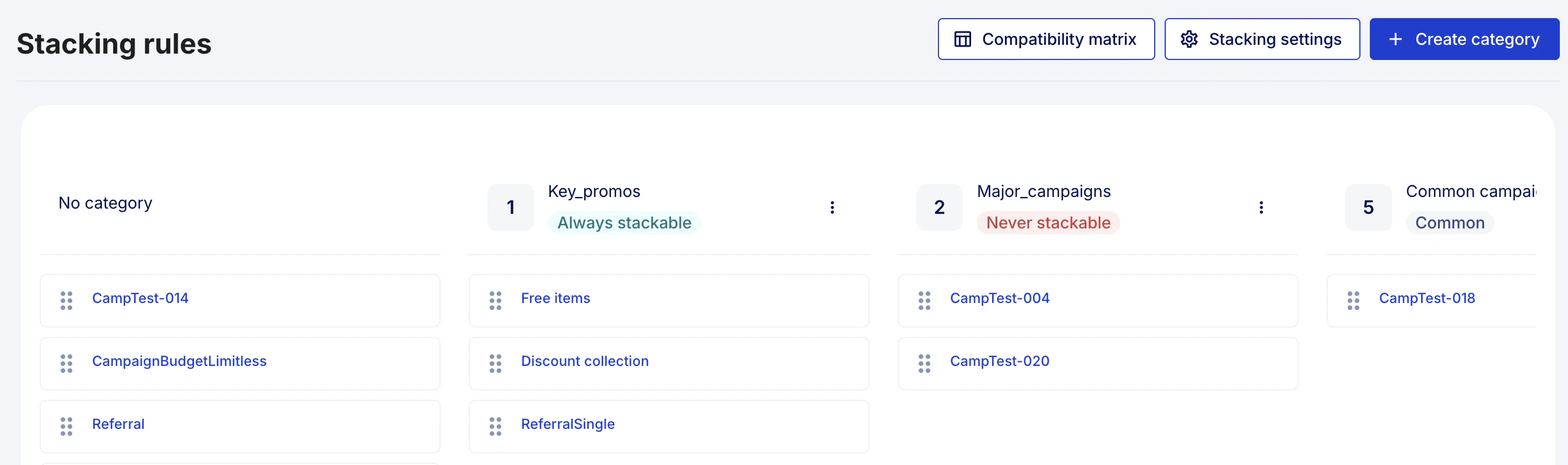
This page describes changes to how you manage Stacking rules and Categories in Voucherify.The behavior of stacking rules doesn’t change. You don’t need to update your configuration. Stacking incentives work the same as before.There is a Stacking rules section in the Campaign hub. In this section, you can:
- view and manage campaign categories
- assign campaigns to categories
-
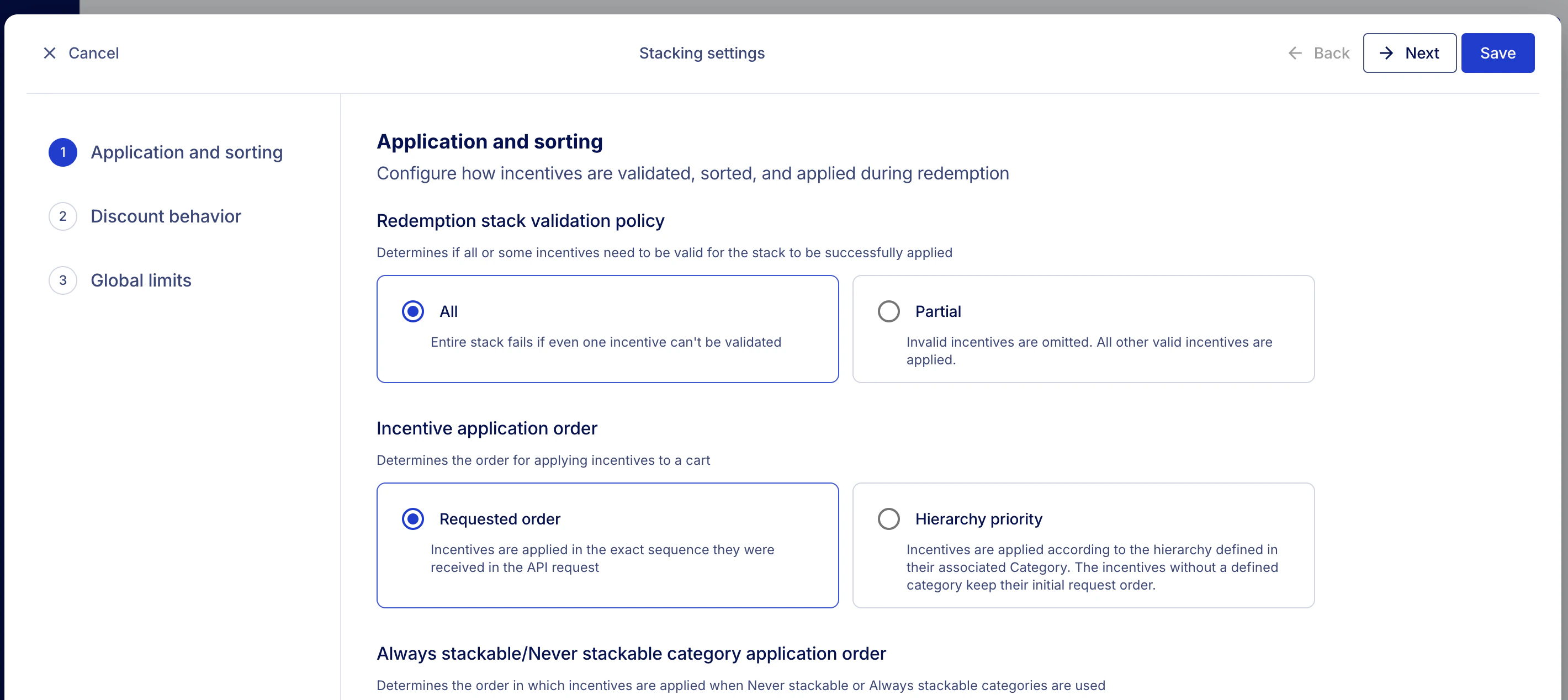
set Stacking settings
Stacking rules: name change list
Stacking rules: name change list
| Current setting name | New setting name |
|---|---|
| Discounts’ application rules | Application and sorting |
| Application rule - Partial - inapplicable (not met criteria) discounts are omitted - All provided promotions must be in a valid state | Redemption stack validation policy - Partial - All |
| Sorting rule - Promotions applied in an order given in request - Promotions’ calculation order defined by category hierarchy | Incentive application order - Requested order - Hierarchy priority |
| Sorting rule for grouped redeemables - Apply Joint categories last - Apply Sorting rule to combined Joint and Exclusive categories | Always stackable/Never stackable category application order - Apply Always stackable categories last - Apply Sorting rule to combined Always stackable and Never stackable categories |
| Products application rule - Always stack - allow multiple discounts to a product - Apply only once - prevent multiple discounts to the same product | Product stack policy - Multiple application - Single application |
| Rollback Order Mode - With order - The discounts will be reverted and order will be canceled - Without order - The discounts and status will be kept | Redemption rollback policy - Revert - Keep |
| No Effect Rule - Redeem anyway - even where there is no effect applied - Skip - redeem only when there is an effect applied | No effect - Force redemption - Prevent redemption |
| Limit Settings for Stackable Discounts API | Global limits |
| Maximum count of redeemables in API request | Maximum number of incentives in a request |
| Maximum count of valid promotions to apply in a request | Maximum number of valid incentives to apply in a request |
| Maximum count of valid promotions per category to apply in a request | Maximum number of valid incentives per category to apply in a request |
| Maximum count of valid exclusive promotions to apply in a request | Maximum number of valid Never stackable incentives to apply in a request |
| Maximum count of valid exclusive promotions per category to apply in a request | Maximum number of valid Never stackable incentives per category to apply in a request |
| Campaigns Stacking Eligibility - Never Stackable (Exclusive) - Always Stackable (Joint) | Stacking eligibility (in the Category editor) - Common - Never stackable - Always stackable |
| Discount Calculations by Category - Based on Initial Amount - Based on Discounted Amount | Discount calculation mode - Based on discounted amount - Based on initial amount |
Required permissionsUsers with the User role can view Stacking rules and Categories, edit category name and hierarchy, as well as assign campaigns to categories.However, only Admins and custom roles with Access Project settings and Modify base Project Details can modify stacking settings in Categories and Stacking settings.
Stacking rules and categoriesSome of the settings in categories are affected by stacking settings.Read Stacking rules to learn more about particular settings.
Create a category
You can create a category from the Stacking rules view by clicking Create category.Set hierarchy
In Hierarchy, enter a number.The hierarchy number helps define category priority when campaigns are applied together. A lower number means higher priority. For example, a category with hierarchy 1 is treated as more important than a category with hierarchy 2.The hierarchy number is displayed next to the category name in the Stacking rules view.
Categories are applied according to hierarchy only if Hierarchy priority is selected in Incentive application order in Stacking settings.
Configure stacking eligibility
Stacking eligibility defines how campaigns assigned to this category behave when they are validated together in the same redemption.This setting controls how campaigns from this category interact with campaigns from other categories.Choose one option:
-
Common: Campaigns follow the application order. They:
- Stack with other Common campaigns.
- Stack with Always stackable campaigns.
- Do not stack with Never stackable campaigns.
-
Never stackable: Campaigns in this category block Common campaigns in the same redemption stack. They:
- Do not stack with Common campaigns.
- Stack with Always stackable campaigns.
- Stack with other Never stackable campaigns.
Never stackable campaigns can be applied together only if the global limits in stacking settings allow it.
- Always stackable: Campaigns in this category always join the redemption stack if they are valid. They:
- Stack with Common campaigns.
- Stack with Never stackable campaigns.
- Stack with other Always stackable campaigns.
Configure no effect behavior
In No effect, choose how the system handles a campaign that has no calculated effect:
- Default: Uses the global No effect setting.
- Prevent redemption: The campaign is redeemed only if an effect was calculated.
- Force redemption: The campaign is redeemed even if it has no effect.
Configure discount calculations
In Discount calculations, choose how discounts are calculated:
- Default: Uses the global discount calculation setting.
- Initial: Calculates the discount from the original order value.
- Discounted: Calculates the discount from the current order value after previous discounts are applied.
Set stacking limit
In Stacking limit, enter the maximum number of campaigns from this category that can be applied in one redemption.The maximum value is controlled by the global setting Maximum number of valid incentives to apply in a request defined in Stacking settings.The stacking limit can be set to the same number as the global setting or to any lower number. It cannot exceed the global setting.
The global maximum value is 30.
Assign campaigns to a category
Campaigns are shown in columns, including No category and category columns. To assign a campaign:- Locate the campaign in the list.
- Drag it into another category column.
- Drop it to confirm the assignment.
Edit or delete a category
Each category has a three-dot menu next to its name. Use this menu to manage the category:- Edit: Update the category settings.
- Delete: Remove the category.